Pages

Showing posts with label Tutorial. Show all posts

8/19/2010

Convert DVD movies or video to Apple TV on MAC


Let’s say you’ve purchased a movie on DVD, and you want to watch it on your Apple TV. You could buy a computer-friendly copy from the iTunes Store—if it’s available, that is. Or you could download batch videos from internet, you get many videos such as MKV, AVI from your friend. You want to play the videos on Apple TV. However, Apple doesn't exactly make it simple to watch content that's not purchased from iTunes, and the Apple TV was clearly meant to be an iTunes portal for the living room. The Apple TV's spec page indicates that it supports a very limited number of file formats: anything from the iTunes store, H.264/AVC movies, and MPEG-4 video. For the average user, these will likely be fine, and it's not hard encoding one's own movies to fit one of these formats.

Here, we are writing about how to rip DVDs and convert other video files into formats that will play on Apple TV in the help of iFunia DVD to Apple TV converter and Apple TV Video Converter, then you can enjoy from the comfort of your couch in the best possible quality.

How to rip or convert DVD to Apple TV on Mac?
There are plenty of converters you can find can do the conversion for Apple TV on the market, but the quality different. We’ll be using the very nice professional Apple TV converter called iFunia DVD to Apple TV converter, compared to others, this soft has rapid conversion speed, high output quality, what's more, it is quite easy to use, to a novice, and this is the most suitable converter. It is positioned specifically as a simple, "one button" converter for Apple's devices that sync with iTunes: the video Apple TV.

Step1. Get iFunia DVD to Apple TV converter and Load DVD files
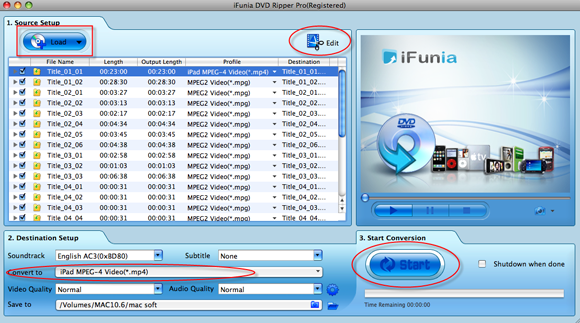
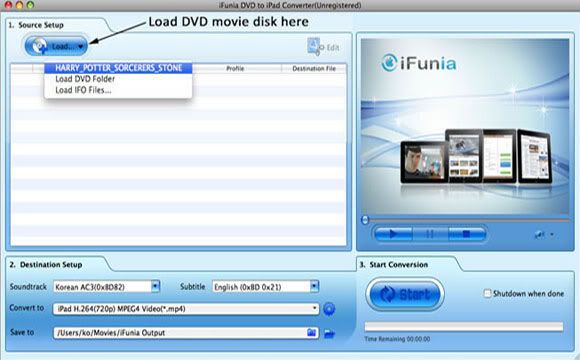
Download iFunia DVD to Apple TV converter and run it on MAC. In the program main panel, click the button "Load..." to load your DVD movie, you may see the name of DVD movie disk if you insert DVD before running this DVD ripper tool. A movie DVD usually has several titles, just select the titles you would like to convert.
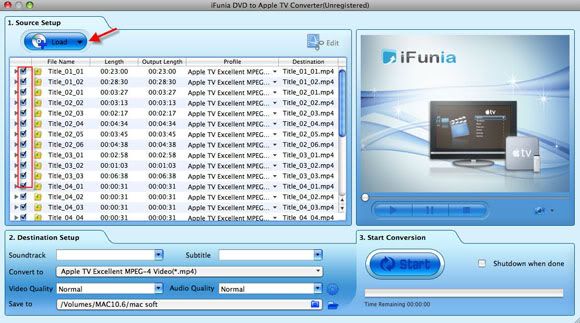

Step2. Select output format and set up the conversion parameters
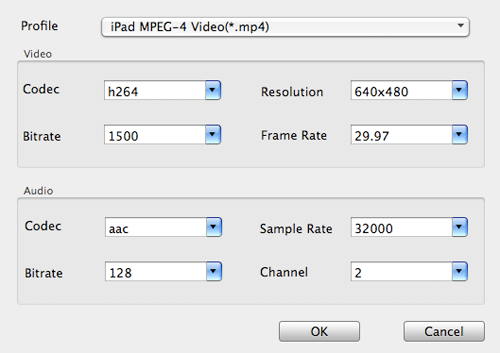
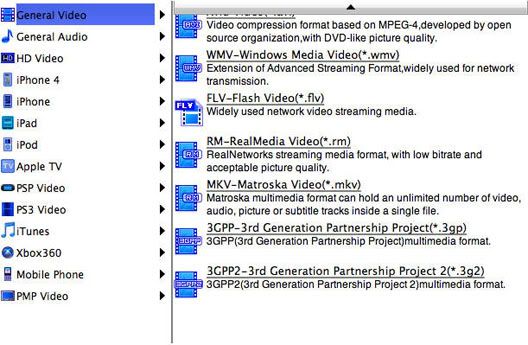
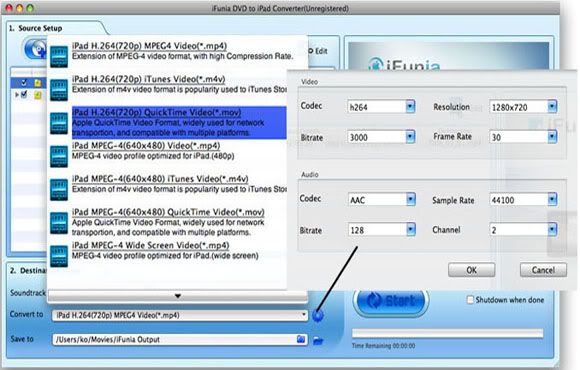
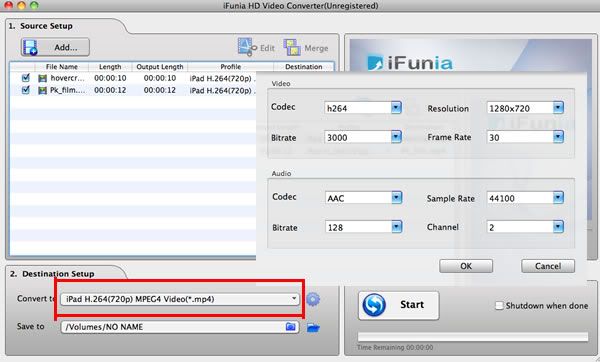
In "Destination Setup" you can use the "convert to" drop-down menu to control the output format. Select Apple TV MP4 output format and adjust the Resolution, Bitrates, Frame Rate and Audio Codec in section Export Settings. Then go to "Save to" to specify a directory on MAC to save the output files.
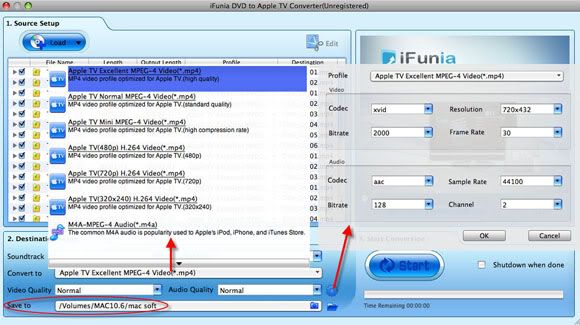

Remember that the output file size mostly depends on the Bitrate you set. Larger Bitrate, larger file size.

Step3. Start DVD to Apple TV MP4 conversion
Finally, convert your DVD to Apple TV MP4 by hitting the Start button. Tick "Shutdown when done" check box - if needed. The convert progress bar shows you how much of the encoding is completed. The encoding time will depend on several variables including: the duration of the video file, the speed of your computer, what other activity your computer is currently doing and the bitrate you set.

Steps on converting video files to Apple TV on MAC
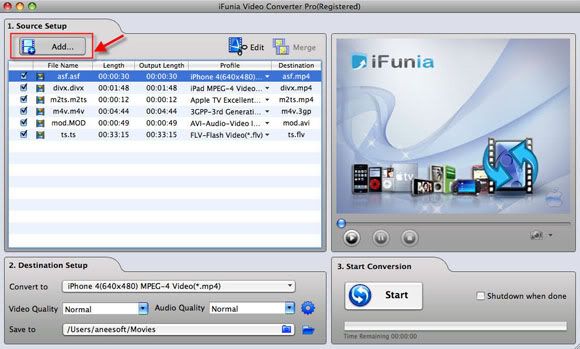
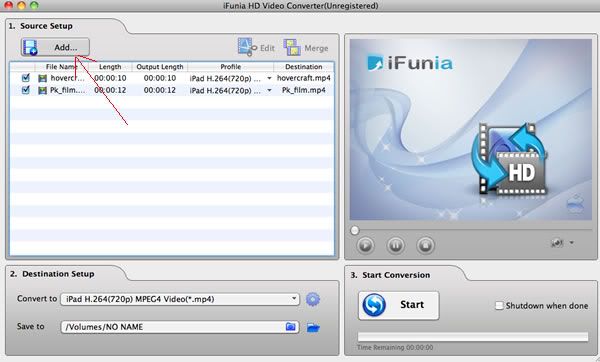
The steps on converting video files to Apple TV on MAC are similar to rip DVD movies. First, run the iFunia Apple TV Converter, and click the "Add..." button to add video files. Next preset the output settings, adjust wanted parameters and then click "Start" button to start the ripping.
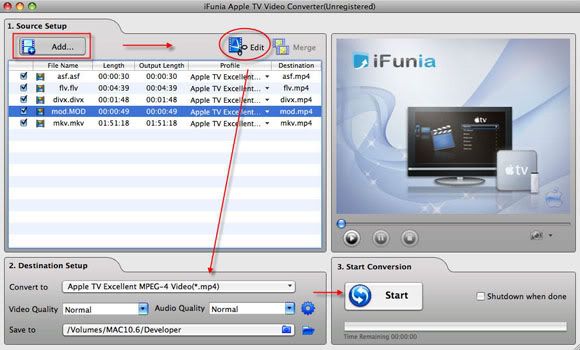


Optional step. Edit videos: crop, trim, add special effects or add watermark and deinterlace
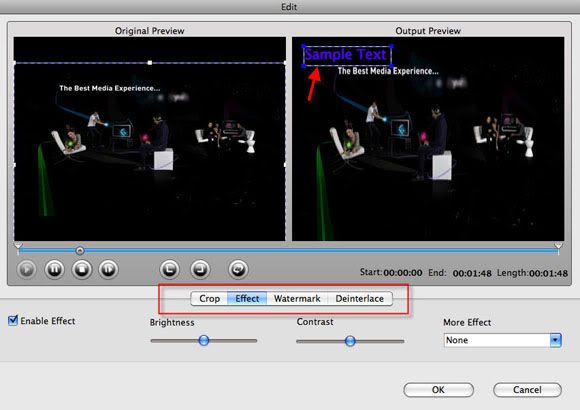
Wanna add a personalized watermark on the output video files? iFunia DVD to Apple TV and Apple TV converter both allow you add a text watermark or a image logo. Just select the titles/chapters you'd like to add watermark, then click the button 'Edit' to open video editing window. If you want to crop DVD movies or video files and add some special effects, click the first two tabs.
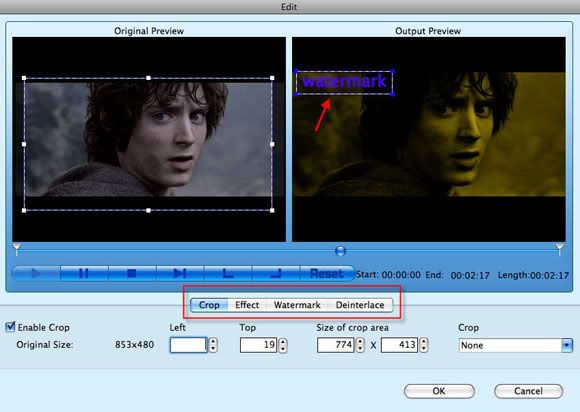

After all are done, you just get the wanted DVD movies or video files on MAC, and sync them to your Apple TV for playback on-the-go!

Tips&Tricks
* Batch conversion. iFunia DVD to Apple TV Converter and Apple TV Converter both can convert multiple videos to Apple TV compatible format in one pass to save time.
* HD video conversion. The two programs also can rip HD DVD and HD video to watch them on your wide screen HDTV.
* iFunia Apple TV Converter also can convert AVCHD (M2TS, MTS), MOD to Apple TV MP4 video format.
* You can built-in DVD player or preview the video by selecting the video and clicking Play in the preview pane with this two iFunia Apple TV converter. You can also take snapshot and save them as jpg, bmp file while preview.
* If you are a PC user, please just refer to iFunia DVD to Apple TV Converter and Apple TV Video Converter for Windows.

Read more...

8/15/2010

Convert video to playback on iPad, iPhone 4, iPod, Apple TV, PSP, Creative ZEN, Zune, BlackBerry...


Got a ton of videos files from YouTube or taken by camera and want to watch them on your portable video player? Or maybe you'll have one of this problems, want to watch videos in different formats on iPad? Don’t know how to convert/transfer/put/import videos to iPad? You have a Sony PSP and would like to watch your favorite home video using it? But you do not know how to convert your files into PSP compatible format?

Get a blackberry models, want to enjoy some videos on the trip, but find that although all current BlackBerry models support video playback, format restrictions make it very hard to get your videos onto the device. iFunia Video Converter Pro for Windows, designed as an all-in-one video converter for Windows with ready-made presets for converting to popular video/audio formats and support changing video formats for Sony’s PSP and PS3, Apple’s iPad, iPhone(iPhone 4), iPod and Apple TV, the BlackBerry, Xbox 360 and other portable players, enables you to transfer your home video library to a necessary format with a few mouse clicks.

What you will need:
1. A portable device capable of video playback
2. iFunia Video Converter Pro for Windows
3. Favourite video files want to convert

Just follow the step-by-step guide to convert your video to playback on iPad, iPhone 4, iPod, Apple TV, PSP, Creative ZEN, Zune, Blackberry...
Step1. Download and install iFunia Video Converter Pro
Download the video converter pro from iFunia homepage or downloadatoz.com. After the download is finished, run the ifunia-video-converter-pro.exe file and follow the installation wizard instructions.
Step2. Run iFunia Video Converter Pro for Windows and Add your input video file
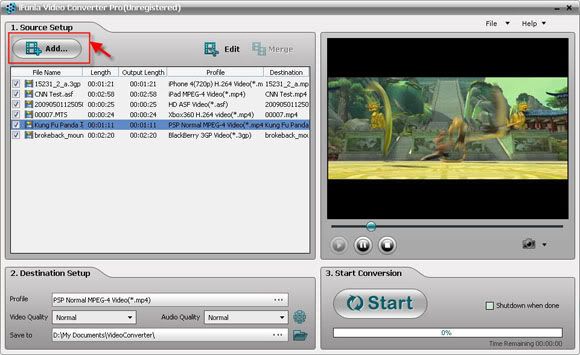
Now run the iFunia Video Converter Pro and click the big button "Add..." to add videos from your hard disk, you may add as many videos as you want to convert to needed videos for watching on portable video player. Only the titles you checked will be converted.


Step3. Edit & merge videos: trim, crop, add effect, add watermark and deinterlace
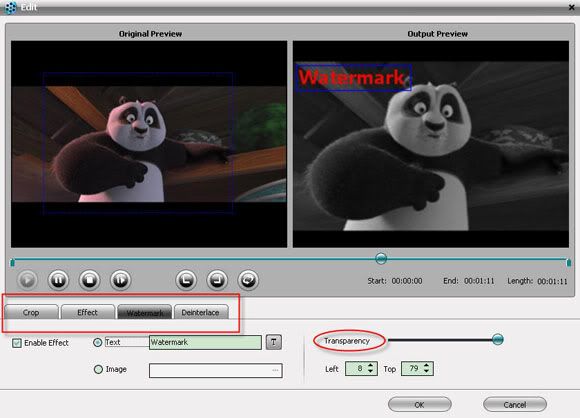
Wanna edit your videos to make it more personalized? You may add a watermark in iFunia Video Converter Pro for Windows. Just select the title you'd like to add watermark, then click the button 'Edit' to launch video editing window. If you want to crop video or add some special effects, click the first two tabs. And you also can do deinterlace the videos.


Step4. Set up output settings and the conversion parameters
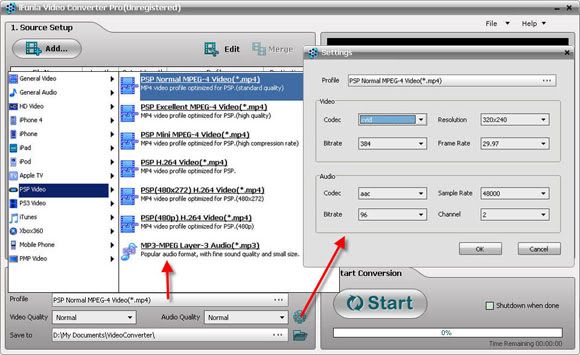
Set the output setting as your wish, from the "Convert to" drop-down list, choose a wanted output format , you'll find a wide range of preset video setting options available. And adjust the Resolution, Bitrates, Frame Rate and Audio Codec in section Export Settings. Then go to "Save to" to set the output directory.


Step5. Start the video conversion
Finally, click the big "Start" button to start converting videos, the conversion will take some time. If you don't want to wait around during the conversion, just check "Shutdown when done".

Tips
* Allows preview original video and fixed video in real-time while editing.
* If needed, can merge all clips from a conversion batch into one movie for easy sharing on YouTube.
* After conversion, you can sync the videos to iPad, iPhone 4, Apple TV, iPod via iTunes, or transfer the videos to ZEN, Zune or Blackberry.
* If you are a MAC user, please just refer to iFunia Video Converter Pro for MAC.

Read more...

8/08/2010

How to convert video and DVD movies to iPad or iPhone 4 on MAC


If you got a bunch of videos from HD camera or somewhere, or numbers of favourite DVD movies and want to watch them free on the go, what should you do? Just stored or buy the DVDs from iTunes again?

Well, with the portable device player flourishing developing on the market, you can just put the videos and DVD movies on them and playback as desired. The new released iPad, with 9.7-inch LED-backlit glossy widescreen display, 1024-by-768-piexl resolution, the HD feature makes watching DVD movies an utterly new experience. As well as iPhone 4, thanks to the Retina display, it's pixel density is so high, your eye is unable to distinguish individual pixels. And the remarkable 960x640 resolution screen of iPhone 4 will make your movie watching experience unbelievably sharp and crisp. So it’s wise to convert the videos and kinds of DVD movies to your new iPad or iPhone 4 for entertainment.

To help Mac users watching videos and DVD movies on iPad or iPhone 4, this article will focus on this point to show you a solution on how to convert, rip videos and DVD movies to iPad or iPhone 4 on Mac OS. Just read on to find this step-by-step tutorial from the following contents.

What You Will Need
* Bunch of videos or DVD movies
* iFunia MediaConverter Bundle
* iTunes

Step-by-step guide: how to convert video to iPad or iPhone 4 on Mac OS

Step1. Add video to convert

Download iFunia MediaConverter Bundle and run the Video Converter Pro, click Add…button to select and open the video file you wish to convert. iFunia MAC Video Converter Pro is an all-in-one MAC video converter, a groundbreaking Mac video format converter you can use to convert video of all popular formats like AVI, WMV, AVCHD, MKV, FLV, H.264/AVC, MP4, MOV, 3GP,etc. for playback on iPad, iPhone 4, iPod, Apple TV and other portable devices.


Step2. Select an output format
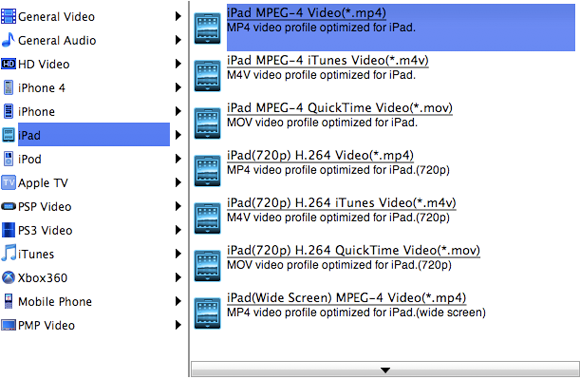
In the Destination-Setup section of the interface, choose the right preset for your iPad or iPhone 4 devices in the Convert-to drop-down menu.


Step3. Adjust audio and video parameters
In the Convert to settings, you can get the following window will pop up. This iFunia Mac Video Converter Pro allows users adjusting video and audio parameters like codec name, aspect ratio, bit rate, frame rate, sample rate and audio channels to optimize the playback quality on iPad or iPhone 4.


Please notice that the parameters you changed should not be out of the format restrictions of iPad and iPhone 4, otherwise, the output files may not playable. Following are iPad and iPhone 4 all Supported following Video Format.

* H.264 video (up to 720p, 30 frames per second; main profile level 3.1 with AAC-LC audio up to 160 Kbps, 48kHz, stereo audio in .m4v, .mp4, and .mov file formats)
* MPEG-4 video, up to 2.5 Mbps, 640 by 480 pixels, 30 frames per second, Simple Profile with AAC-LC audio up to 160 Kbps, 48kHz, stereo audio in .m4v, .mp4, and .mov file formats.
* Motion JPEG (M-JPEG) up to 35 Mbps, 1280 by 720 pixels, 30 frames per second, audio in ulaw, PCM stereo audio in .avi file format.

Step4. Click the “Start” button to start conversion on OS X
Bingo! That’s it! When the conversion is done you can transfer the video to your iPad or iPhone 4 via iTunes and enjoy it anytime and everywhere!

Steps on ripping DVD movies to iPad or iPhone 4
The steps on ripping DVD movies are similar to convert videos. First, run the DVD Ripper Pro from the iFunia MediaConverter Bundle, and click the "Load..." button to load IFO files. Next preset the output settings, adjust wanted parameters and then click "Start" button to start the ripping.


After all are done, you just get the wanted DVD movies on MAC, and sync them to your iPad or iPhone 4 for playback on-the-go!

Additional tips:
* iFunia MediaConverter Bundle allows you convert HD videos and rip DVD movies to all popular formats.
* Batch conversion. Convert multiple videos in one pass to save time.
* Save video and DVD movies for iPad, iPhone 4, iPhone 3G(S), Apple TV, PSP, Zune, Archos, BlackBerry, cell phone and more.
* You can join multiple video files to create a single movie via merge the video files.
* You can do simple editing like trimming, cropping, adding special effects, watermark to video and deinterlace video by clicking "Edit". Real-time preview provided while editing.
* You can preview the video by selecting the video and clicking Play in the preview pane. You can also take snapshot and save them as jpg, bmp file while preview.

Read more...

8/04/2010

How to convert video to MP4, AVI, FLV, 3GP, WMV, MOV…on MAC


I got some favourite videos and would like to watch them on my phone everytime eveywhere on the go. But the videos I downloaded are .FLV video format which could not be supported by my phone. I would like to find a video converter to convert FLV to 3GP videos. Do you have the same conversion problem too? Maybe you got lots of video and would like to import them into Windows Movie Maker for editing.

But the videos downloaded are .MKV video format which could not be supported by Windows Movie Maker, then you need to convert the MKV to WMV videos first; or you got some AVCHD videos by HD camera, and just wanna upload them to YouTube for sharing, but found that YouTube only support several video formats, this time you may need to convert the AVCHD to FLV files for uploading.

Nowadays, people have so many kinds of portable music/video players, and they play different video formats, so how to convert video from one popular video format to another is a question. Now I will give you a excellent All-in-one video converter: iFunia Video Converter Pro that can do all popular formats conversion in few clicks. The process is relatively simple, so even if you are not technically savvy, you should be able to convert all popular video formats to MP4, AVI, FLV, 3GP, WMV, MOV…on MAC without an issue. Well, read on.

Step1. Download and install iFunia Video Converter Pro
Download the All-in-one video converter from iFunia homepage or download sites, and install it on MAC.

Step2. Add video files to the converting program
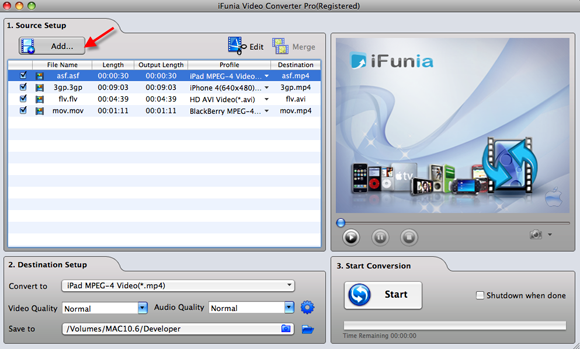
Run the program iFunia Video Converter Pro on your Mac and click the button "Add.." to add video files, you may add as many videos as you want for batch conversion.


Step3. (Optional) Edit videos: crop, trim, add effects, add watermark
This step is optional step. But when you come to review the video your taken and find it's too dark or the focus is blurred, you may wanna fix these flaws and apply artistic effects with the Edit Video module of the program. Plus, with just a few clicks, you can crop the video to remove black sides, trim the video and add text or image watermark easily as below.


Step4. Set the output formats and other settings
From the "Convert to" drop-down list select output format for each video file and specify a directory on your computer to save the output files. Remember that the output file size mostly depends on the Bitrate you set. Larger Bitrate, larger file size. Actually video with bitrate as 768 is acceptable for watching.


Step5. Start the converting
After all the preset done, you may click the big button "Start" to begin converting videos to MP4, AVI, FLV, 3GP, WMV, MOV that which one you need. The convert progress bar shows you how much of the encoding is completed. The encoding time will depend on several variables including: the duration of the video file, the speed of your computer, what other activity your computer is currently doing and the bitrate you set.

Tips
* You can preview the video by selecting the video and clicking Play in the preview pane. You can also take snapshot and save them as jpg, bmp file while preview.
* Supports Mac OS X 10.5 Leopard and Mac OS X 10.6 Snow Leopard on iMac, Mac Pro, MacBook, MacBook Pro, MacBook Air, etc.
* If you are a PC user, please just refer to iFunia Video Converter Pro for Windows.

Read more...

7/30/2010

How to Watch DVD Movies on iPad easily with iFunia


What movie format will iPad play? How to convert a movie compatible to iPad movie format without buying the movie with iTunes.

So you just bought an iPad and want to stock it with movies from your DVD library. For both Windows and Mac users, we need a third-party software to converter DVD movies to iPad and then we can watch DVD on iPad. We're talking about ripping a movie directly from the DVD.

Here is the guide will solve the problem on how to watch DVD movies on iPad for Mac users. The software we will use here is iFunia DVD to iPad Converter for Mac. You can get it from its official page. It will not only help you convert DVD movies to watch on iPad, but also let you edit the DVD and much more.

Things You Will Need
* Cool iPad
* Favourite DVD movies
* DVD to iPad Converter from iFunia
* Free storage space

What movie format will iPad play?
So, most iPad users like to watch movies on this beautiful handset. However, according to iPad's official page, there are many technical specifications as follows for iPad movie format:
Movie Format: MP4, MOV, M4V
Movie Size: up to 1280 by 720
Movie Framerate: up to 30fps
Movie Bitrate: up to 1.5Mbps for H.264, or 2.5Mbps for MPEG-4
Audio: AAC up to 160Kbps, 48 kHz

H.264: A standard for video compression; known as MPEG-4 Part 10, or MPEG-4 AVC (for Advanced Video Coding); the latest block-oriented motion-compensation-based codec standard developed by the ITU-T Video Coding Experts Group (VCEG) together with the ISO/IEC Moving Picture Experts Group (MPEG).
MPEG-4: A collection of methods defining compression of audio and visual (AV) digital data; introduced in late 1998 and designated a standard for a group of audio and video coding formats and related technology agreed upon by the ISO/IEC Moving Picture Experts Group (MPEG) under the formal standard ISO/IEC 14496; uses of MPEG-4 include compression of AV data for web (streaming media) and CD distribution, voice (telephone, videophone) and broadcast television applications.
MP4: Movie or video clip that uses MPEG-4 compression, a standard developed by the Moving Picture Experts Group (MPEG); commonly used for sharing video files on the Internet.
MOV: Common multimedia format often used for saving movies and other video files; uses a proprietary compression algorithm developed by Apple Computer; compatible with both Macintosh and Windows platforms.
M4V: MPEG-4 file extension used for videos downloaded from the Apple iTunes store; includes music videos, TV episodes, and full-length movies; similar to a .MP4 file, but may be copy-protected using Apple's FairPlay DRM copyright protection.

How to Watch DVD Movies on iPad for Mac?
It will be deadly easy for Mac users to watch DVD movies on iPad with the help of iFunia DVD to iPad Converter for Mac. This guide is easy enough to follow while you read it.

Step 1 Load movies to the DVD to iPad Converter for Mac
Now get your DVD disc and insert it. Then run iFunia DVD to iPad movie format converter on your Mac and click the big button "Load..." to load your DVD disk.


Step 2 Select iPad preset from output format list
In the Destination-Setup section of the interface, choose the right preset for your iPad device in the Convert-to drop-down menu. You can also change the output settings to make the video look the best on iPad. Here I set the output video format to 'iPad MPEG-4 Video (*.mp4)'.


Step 3 Hit Start to convert DVD for iPad to Finish
Bingo! That's it! When the conversion is done you can copy the output DVD movies to your iPad and enjoy it comfortably on a cozy sofa! This professional DVD to iPad Converter for Mac from iFunia is specially design for Apple iPad, aiming to enable iPad users an exquisite experience of viewing DVD movies on your iPad’s widescreen.


Tips
* If you are a PC user, please refer to iFunia DVD to iPad Converter for Windows.
* Output setting. In the settings window, the parametres of movie going to be gennerated will be set automatically according to iPad's video requirements. However, you can access more configurations and change them if you like to customize the iPad movie.
* This DVD to iPad Converter from ifunia allows edit videos, crop, trim video and add watermark and special effects.
* Batch Conversion. Save time with batch and fast speed of video conversion.

Read more...

7/28/2010

Convert 1080P HD Videos to 720P for iPad on MAC


So you've got an iPad with an "HD" 1,024 by 768 pixel screen, the screen is in a 4:3 ratio which is the exactly the same as an old CRT television set. Many of us are having gone on from there and are luxuriating in the glory of our 16x9 aspect HD videos. It turns out that 16x9 will give you big honking black bars at the top and bottom of your screen as you can see by the green bar in the image below, and anything above or below it will be displayed as black bars.

Actually, if you have a boatload of 1080P HD video files on your computer, iPad can't play them - and, iTunes won't even let you copy them to the iPad! The easiest solution is to download or convert 1080P HD video to 720P video using HD Video Converter supplied by iFunia. Here is a tutorial will show you a really easy solution to convert 1080P HD videos(.MTS, .M2TS, .MKV) to iPad with HD Video Converter from iFunia in full screen for great enjoyment.

3 simple steps to convert 1080P HD files to 720P for playing on iPad
Step 1: "Add" 1080P HD (.mts, .m2ts, .mkv ) files to iFunia HD video converter.


Step 2: Choose H.264 720P MP4 format for iPad
We all know the iPad can only play back H.264 MPEG4 (.mp4) files, choose H.264 720P MP4 output profile. And in the "Settings" window, all the video/audio parameters are set for playing 1080p on iPad with better quality.


Step 3: Click the "Start" button to start conversion of 1080p, 1080i MTS/M2TS files to 720P for iPad now.
As long as the conversion is done, you will get the 720p MP4 video files in full screen from its destination folder, and then you can import the files to iTunes and sync to your iPad for playing.

Tips
* If you are a PC user and want to convert 1080P HD Videos to 720P for iPad on Windows, please turn to iFunia HD Video Converter for Windows.
* This HD Video Converter from iFunia can convert HD videos including HD AVI,HD WMV,HD MOV, H.264/AVC, AVCHD (mts, m2ts), MKV.
* Allows edit videos, crop, trim video and add watermark and special effects.
* You can merge multiple video clips into one video with iFunia HD Converter.
* Down-convert HD videos to SD video formats with iFunia HD tool.
* Batch Conversion. Save time with batch and fast speed of video conversion.

Read more...

7/19/2010

How to rip DVD movies or convert videos for iPhone 4 on Windows


Since the new iPhone 4 display has 960*640 resolution, movies and videos will do look great on the new device, and it’s a lot easier to carry around than a laptop or portable DVD player. If you have a bunch of DVD movies and want to watch them on iPhone 4, what should you do?

Buy them from iTunes again? And if you got lots of favourite videos and want to enjoy freewheelingly during a travel, but sink into the converting problems? Apple iPhone 4 only supports MP4, MOV, M4V video formats (H.264, MPEG-4 video codec). How to rip DVD movies or convert video to iPhone 4 and watch them on iPhone 4?

Here, you will find a quick and effective solution with iFunia iPhone 4 Bundle to convert dvds or videos to QuickTime for iPhone 4 on Windows (Windows 7 compatible) in simple steps.

Things you'll need
* Favourite DVD movies or video files wish to convert
* The cool and latest iPhone 4
* iFunia iPhone 4 Windows Bundle(Free trial version: DVD to iPhone 4 Converter and iPhone 4 Video Converter)
* iTunes to sync your iPhone 4

The article departs into two parts.
Part one Rip DVD movies to iPhone 4 on Windows
Step 1 Launch iFunia DVD to iPhone 4 Converter and load your DVD

Download and install iFunia DVD Ripping software for Windows as preparation. Load your DVD files to iFunia DVD to iPhone 4 Converter for Windows through the button "Load...". Alternatively, you can hit "Load IFO" to import IFO files. In a minute, your DVD files will be listed at the main panel.


Step 2 Output Settings for iPhone 4
It's for sure that if you want to play videos on iPhone 4, you should make the video file compatible with iPhone 4 first.
On iFunia DVD to iPhone 4 Converter, you can easily set the output in the Destination-Setup section of the interface, choose the right preset for your iPhone 4 device in the Convert-to drop-down menu.


And remember to set the output directory to save the converted files in "Output Path" drop-down list. You can also adjust other settings such as video quality, audio track, Bitrates, aspect ratio, brightness, contrast, saturation, etc.

Step 3 Convert DVD to iPhone 4 on Windows and Transfer/Sync to iTunes
When the settings are done, click the "Start" button to begin converting DVD movies onto your hard disk. And the convert progress bar shows you how much of the convert process is completed.

After conversion, you can minimize the DVD to iPhone 4 converter's window. Then connect your Apple iPhone 4 to PC and sync converted video to iPhone 4 with Apple iTunes. Now you can watch your favorite movies/videos on your iPhone 4 and enjoy the fresh brilliance and high definition on its higher quality screen.

Part two Convert videos to iPhone 4 on Windows
Step 1 Download iFunia iPhone 4 Video Converter for Windows and make the source setuping

Download and install iFunia iPhone 4 video converter, then click "Add…" button to select and open the video file you wish to convert. iFunia iPhone 4 Video Converter supports most of the popular video formats, so you can easily convert AVI to iPhone 4, MKV to iPhone 4, and even HD video formats like AVCHD M2TS MTS to iPhone 4 format.


The next steps set the output and directory and "Start" the converting, mainly are similar to rip DVD movies, you can get the details by following the guides.

Tips & Tricks
* You can select any subtitle and audio track on DVD for ripping to iPhone 4 MP4 video.
* You can do simple editing like trimming, cropping, adding special effects and watermark to video by clicking "Edit". Real-time preview provided while editing.
* With batch conversion supported, you can append many tasks at one time and iFunia iPhone 4 Video Converter for Windows will convert them one by one for saving your time.
* You can preview the video by selecting the video and clicking Play in the preview pane. You can also take snapshot and save them as jpg, bmp file while preview.
* Support 320×240, 680×320, 640×480, 720×406 resolutions for iPhone 4, iPhone 3GS, iPhone 3G.
* Note, if you are a MAC user and want to convert DVD or video to iPhone 4, please refer to iFunia DVD to iPhone 4 Converter and iPhone 4 Video Converter for MAC.

Read more...

7/15/2010

How to convert WMV to iPad on Mac

A friend asked me this question "I receive .wmv files in e-mails in my iPad how can I see them in my iPad?" I think there are must many folks encountered this problem to get WMV video files to ipad and watch them.

As an Apple site editor, after searched and read many articles and reviews, I write out this article on how to convert WMV to iPad supported. I will show you how convert WMV to iPad compatible video/audio files step by step as follows.

First, you should know that WMV is a Windows Media File and will not play on the iPad (or a Mac). It is a compressed video file format for several proprietary codecs developed by Microsoft. The original codec, known as WMV, was originally designed for Internet streaming applications, as a competitor to RealVideo. The other codecs, such as WMV Screen and WMV Image, cater for specialized content. To view WMV video files on iPad, you need to convert them into an iPad friendly format. Here shows you the simple steps how to with iFunia iPad Video Converter commended by many sites such as Applethoughts.com.

Step 1. Get the iPad Video Converter and Add WMV files
Download the iFunia iPad video converter from its official site or download sites and launch it, then click the "Add" button to add WMV video files to the wmv to iPad mac converter. This WMV to iPad video converter for Mac supports drag-drop and batch conversion, so you can import and convert several multimedia files at a time.

Step 2. Select iPad output format
Use the “Convert to” on the bottom of the window to control the output format. Select iPad MPEG4(MP4) output format for each video file and specify a directory on your computer to save the output files.

Step 3. Start WMV to iPad conversion
Click "Start" to begin WMV to iPad video conversion. The convert progress bar shows you how much of the encoding is completed.

Note:
This WMV to iPad Video Converter for Mac fully supports Mac OS X 10.5 or later Snow Leopard, it allows you to manually set video resolution, bite rate, codec and frame rate to get perfect output videos, as well as editing the WMV video files by trimming, cropping and adding special effects and watermarks.

Read more...

7/14/2010

Rip DVD Movies and convert videos to iPhone 4 on Mac

If you’ve got a 4th-generation iPhone (iPhone 4), one of the things you probably want to do is put DVD movies or enjoy videos on it. Since the new iPhone 4 display has 960*640 resolution, movies and videos will do look great on the new device, and it’s a lot easier to carry around than a laptop or portable DVD player.

The new iPhone 4 support formats as follows, now there are many people curious about how to get the DVD movies or video files into a format that the iPhone 4 can play. Well, there are a number of ways to do this, this article will show you how to get DVD movies or different video files onto iPhone 4 using iFunia DVD to iPhone 4 Converter and iPhone 4 video converter. Here will depart two parts to tell you how to make it, the first is how to rip DVD movies to iPhone 4, and the second is how to convert videos to iPhone 4.

iPhone 4 Supported Video and Audio Formats
Video Formats iPhone 4 Supported
* H.264 video up to 720p, 30 frames per second, Main Profile level 3.1 with AAC-LC audio up to 160 Kbps, 48kHz, stereo audio in .m4v, .mp4, and .mov file formats.
* MPEG-4 video, up to 2.5 Mbps, 640 by 480 pixels, 30 frames per second, Simple Profile with AAC-LC audio up to 160 Kbps per channel, 48kHz, stereo audio in .m4v, .mp4, and .mov file formats.
* Motion JPEG (M-JPEG) up to 35 Mbps, 1280 by 720 pixels, 30 frames per second, audio in ulaw, PCM stereo audio in .avi file format
Music & Audio Formats iPhone 4 Supported
* AAC (8 to 320 Kbps), Protected AAC (from iTunes Store), HE-AAC, MP3 (8 to 320 Kbps), MP3 VBR, Audible (formats 2, 3, 4, Audible Enhanced Audio, AAX, and AAX+), Apple Lossless, AIFF, WAV.

Part one How to Rip DVD movies to iPhone 4
Step 1 Launch iFunia DVD to iPhone 4 Converter and load your DVD

Now get your DVD disc and insert it. Then run iFunia DVD to iPhone 4 Converter on your Mac and click the big button "Load..." to load your DVD disk, you may see the name of DVD Movie disk if you insert DVD disk before running this DVD ripper tool (see the image below to have an idea). This may take up to a minute or two depending on the contents of the DVD and the speed of your optical drive.

Step 2 Output Settings for iPhone 4
In the Destination-Setup section of the interface, choose the right preset for your iPhone 4 device in the Convert-to drop-down menu. You can also change the output settings to make the video look the best on iPhone 4. You can select the one you like. Remember that the output file size mostly depends on the Bitrate you set. Larger Bitrate, larger file size.

Step 3 Convert DVD to iPhone 4 on Mac and Transfer/Sync to iTunes
Now you may click the big button "Start" to begin converting DVD movies onto your hard disk. The Convert progress bar shows you how much of the convert process is completed. Please note the ripping time will depend on several variables including: the duration of the video file, the speed of your computer, what other activity your computer is currently doing, the codec you selected (H264 or MP4) and the bitrate you set.

After conversion, you can minimize the DVD to iPhone 4 converter's window. Then attach your iPhone 4 to the computer and sync it with iTunes. Check the option "Automatically sync songs and videos to my iPhone" so your music and video from the iTunes library will automatically snyc to your iPhone 4.

Part two How to Convert videos to iPhone 4
Step 1 Download iFunia iPhone 4 Video Converter for Mac and make the source setuping

Get ifunia iPhone 4 video converter and launch it, then click "Add…" button to select and open the video file you wish to convert. iFunia iPhone 4 Video Converter supports most of the popular video formats, so you can easily convert AVI to iPhone 4, MKV to iPhone 4, and even HD video formats like AVCHD M2TS MTS to iPhone 4 format.

The next steps are similar to rip DVD movies, you can get the details by following the guides.

Tips & Tricks
Tip 1: You can select any subtitle and audio track on DVD for ripping to iPhone 4 MP4 video.
Tip 2: You can do simple editing like trimming, cropping, adding special effects and watermark to video by clicking "Edit". Real-time preview provided while editing.
Tip 3: With batch conversion supported, you can append many tasks at one time and iFunia iPhone 4 Video Converter for Mac will convert them one by one for saving your time.
Tip 4: You can preview the video by selecting the video and clicking Play in the preview pane. You can also take snapshot and save them as jpg, bmp file while preview.

Now that you've converted the DVD movies or videos into a usable iPhone 4 ready-format, you can do what you like with it. Pull it into iMovie and create e-mail, Web, YouTube, iPhone 4-compatible versions of it and share it with the world. After all, it’s your video!

Read more...

7/13/2010

Convert video to iPhone 4 on MAC

The iPhone 4 is really a corker of a handset, if you've got a 4th-generation iPhone ("iPhone 4"), one of the things you probably want to do is put favourite videos on it to enjoy everywhere and everytime.

Thanks to the new iPhone 4 display has 960*640 resolution, movies and videos will do look great on the new device, and it’s a lot easier to carry around than a laptop or portable DVD player. But the problem is you may curious about which formats are supported by the iPhone 4, and how to get the video files into a format that the iPhone 4 can play.

Well, this article aim to tell you the formats iPhone 4 supported and how to convert videos to iPhone 4 by simple steps with ifunia iphone 4 video converter, and then put/sync the videos to iPhone 4.

Things You Will Need
* A latest and cool iPhone 4
* The favourite video file(s) you wish to convert
* iFunia iPhone 4 Video Converter for Mac(download the free trial version)
* iTunes to sync your iPhone 4

Formats supported by iPhone 4
Video Formats iPhone 4 Supported

* H.264 video up to 720p, 30 frames per second, Main Profile level 3.1 with AAC-LC audio up to 160 Kbps, 48kHz, stereo audio in .m4v, .mp4, and .mov file formats.
* MPEG-4 video, up to 2.5 Mbps, 640 by 480 pixels, 30 frames per second, Simple Profile with AAC-LC audio up to 160 Kbps per channel, 48kHz, stereo audio in .m4v, .mp4, and .mov file formats.
* Motion JPEG (M-JPEG) up to 35 Mbps, 1280 by 720 pixels, 30 frames per second, audio in ulaw, PCM stereo audio in .avi file format
Music & Audio Formats iPhone 4 Supported
* AAC (8 to 320 Kbps), Protected AAC (from iTunes Store), HE-AAC, MP3 (8 to 320 Kbps), MP3 VBR, Audible (formats 2, 3, 4, Audible Enhanced Audio, AAX, and AAX+), Apple Lossless, AIFF, WAV.

Step 1 Add video files to Mac iPhone 4 Video Converter
After you launch the Mac iPhone 4 video converter, click the "Add..." button and select the video files you wish to convert. The ifunia iPhone 4 video converter for Mac supports drag-drop and batch conversion, so you can import and convert several video files at a time.


Step 2 Select output profile and change iPhone 4 video and audio settings
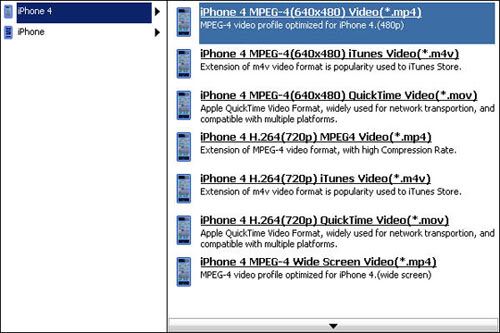
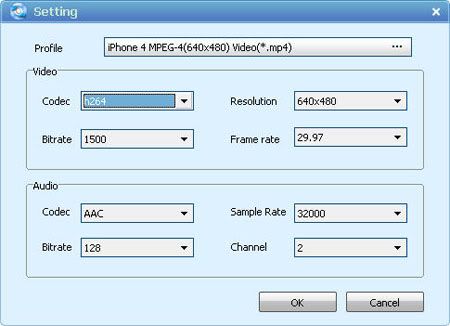
iFunia iPhone 4 Video Converter for Mac has several video profiles to choose for iPhone 4 output format. Select an iPhone 4 MP4 profile from the list, in this case, select "iPhone 4 MPEG-4(640*480) Video(*.mp4)". Using this profile will yield a good quality video for your iPhone 4. You can also change the Resolution, Encoder, Bit rate and Frame rate to get the best quality of video on iPhone 4. The size of the iPhone 4 file depends a lot on these settings.

If you would like you may select the output folder, by default iFunia iPhone 4 Video Converter for Mac will save the file in the default folder as the original file.

Step 3 Start the Conversion
After all the settings, tick "Shut down when done" check box - if needed. Finally, just click "Start'"button to convert video to iPhone 4 on Mac OS. After a few minutes waiting, you can play the converted video files on your iPhone 4.

Step 4 Transfer/Sync video to iPhone 4 via iTunes
Finally you want to use iTunes to add the output file to your library. Usually when you select "Add File to Library..." the file will be placed in your Movies section once you've done that your all set and ready to sync with your iPhone 4. If you've never synced your iPhone 4 before checkout Apple's detailed activation and syncing the iPhone 4 video, the syncing segment is about half way into the video.


Tips & Tricks
* Join multiple video files into one by clicking "Merge" in Source Setup section. You need select the files first in the source list.
* You can do simple editing like trimming, cropping, adding special effects and watermark to video by clicking "Edit". Real-time preview provided while editing.
* With batch conversion supported, you can append many tasks at one time and iFunia iPhone 4 Video Converter for Mac will convert them one by one for saving your time.
* You can preview the video by selecting the video and clicking Play in the preview pane. You can also take snapshot and save them as jpg, bmp file while preview.

Read more...

7/12/2010

Getting Top Summer Movies on Your iPhone4 or iPad

Ah, summer. The chances to take a break from worrying about work, go on vacation, and spend time with your friends and family. Well, with the new iPhone 4 and iPad gadget, your vacation life will be more colorful. The 9.7-inch high-resolution screen of iPad and 960*640 retina display of iPhone 4 make them perfect for watching DVD movies on the go. Pack you iPhone 4 or iPad and iFunia DVD movies ripping tool with the top 2010 movies below and enjoy your big summer vacation now.

Part I. Top 5 summer movies in 2010 1. Iron Man 2
Starring: Robert Downey Jr, Scarlett Johansson, and Mickey Rourke
Release Date: May 7, 2010
2. Robin Hood
Starring: Russell Crowe and Cate Blanchett
Release Date: May 14, 2010
3. Shrek Forever After
Starring: Mike Myers, Cameron Diaz, Eddie Murphy, and Antonio Banderas
Release Date: May 21, 2010
4. Prince of Persia: The Sands of Time
Starring: Jake Gyllenhaal and Gemma Arterton
Release Date: May 28, 2010
5. The A-Team
Starring: Bradley Cooper, Sharlto Copley, Liam Neeson, and Quinton 'Rampage' Jackson
Release Date: June 11, 2010

Part II. The way to put top summer movies on iPhone 4 or iPad
Grab a DVD ripping software. You can Google DVD Decrypter or Handbrake, they are free but can't rip copyright DVDs. Fortunately, there are some all-in-one DVD ripping solutions available. iFunia DVD Ripper Pro(Mac and PC version are all available) is the better option. No technical knowledge or skills are needed to transfer your movies to iPad or iPhone 4. iFunia DVD Ripper Pro has ready-to-use presets for all popular mobile devices and converts in just minutes. The simple instructions below will guide you through the easy steps of the way.

Step 1 Launch iFunia DVD Ripper Pro and load your DVD
Run iFunia DVD Ripper Pro and load DVD by click the "Add" button. It can add three kinds of DVD (DVD disc, DVD folder which includes a "Video_TS" folder and a "Audio_TS" folder, IFO file). You may see the name of DVD Movie disk if you insert DVD disk before running this iFunia DVD ripper tool (see the image below to have an idea). This may take up to a minute or two depending on the contents of the DVD and the speed of your optical drive.


Step 2 Output Settings for iPhone 4 or iPad
In the Destination-Setup section of the interface, select iPhone 4 or iPad "Profile" as the output format, and choose MP4 output format in the Convert-to drop-down menu. You can also change the output settings to make the video look the best on iPhone 4 or iPad. You can select the one you like. Remember that the output file size mostly depends on the Bitrate you set. Larger Bitrate, larger file size.


Step 3 Start conversion
Click the big button "Start" to begin converting DVD movies onto your hard disk. The Convert progress bar shows you how much of the convert process is completed. Please note the ripping time will depend on several variables including: the duration of the video file, the speed of your computer, what other activity your computer is currently doing, the codec you selected (H264 or MP4) and the bitrate you set.

Step 4 Transfer/Sync converted movies via iTunes
Connect iPad or iPhone 4 to computer, iTunes will detect them as a device. Select iPad or iPhone 4 device on the left panel of iTunes, drag and drop the converted MP4 video file into it. That's done. Enjoy.

Read more...