Pages

Showing posts with label flv. Show all posts

11/17/2010

How to convert FLV to iPad for Mac


What is FLV?

Flash Video (FLV) is the name of a file format used to deliver video over the Internet using Adobe Flash Player and has extension FLV. The most recent public release of Flash Player supports H.264 video and HE-AAC audio. Flash Video content may also be embedded within SWF files. Notable users of the Flash Video format include YouTube, Google Video, Yahoo! Video, Reuters.com and many other news providers.


As we know, most of the video files downloaded from these online video hosting sites are in Flash Video (.FLV) format. If you want to put them on your iPad for playback again and again, you need to convert them to iPad supported format first. So, how can you convert your FLV video to iPad video with iFunia FLV Converter for Mac? Please follow this step-by-step guide:


1.Download iFunia FLV Video Converter for Mac, and then run this program.

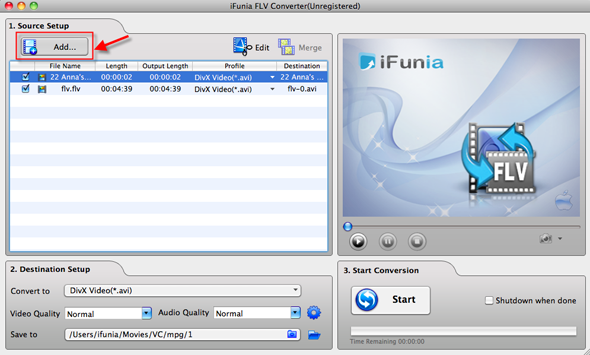
Now run iFunia FLV Converter on your Mac and click the big button "Add..." to add FLV video files, you may add as many FLV videos as you want for FLV to iPad batch conversion.


(Optional) Merge some separate FLV videos to 1 single file

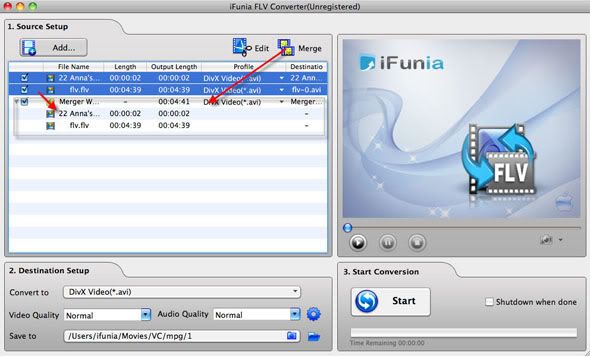
This is optional. But if you want to output 1 MP4 file for easily sharing on iPad, simply click on the video titles you'd like to merge , then click 'Merge' button and uncheck the former separate files if you just need the single merged video file. You may see the image below to have an idea.


2.Choose the output format

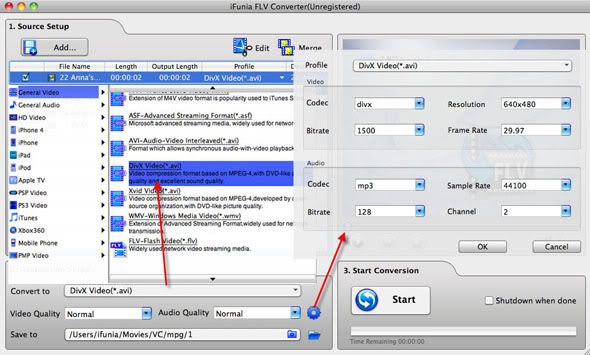
Select iPad output format for each video file and specify a directory on your computer to save the output files. You can change the output settings as you need. Remember that the output file size mostly depends on the Bitrate you set. Larger Bitrate, larger file size. Actually the default profile given is configured with good quality output.


3.Start the FLV conversion

Now you may click the big button "Start" to begin converting FLV to iPad on Mac. The convert progress bar shows you how much of the encoding is completed. The encoding time will depend on several variables including: the duration of the video file, the speed of your computer, what other activity your computer is currently doing and the bitrate you set.


Tags:
YouTube video to iPad, MKV to iPad, AVCHD M2TS/MTS to iPad, AVI to iPad, WMV to iPad, VOB to iPad


Read more...

8/29/2010

How to convert FLV(Flash) to MP4, WMV, AVI, MOV or any other format on MAC easily


"I am trying to find the most cost effective way to convert YouTube flv files to AVI for Mac OS X with which I can make it simple to play FLV on my computers / DVD players... plz suggest a solution which is free to download and is fully working ...even on a trial basis?"

With some tricks, it's now possible to download the videos that hosted and shared on online video sites such as YouTube and Google Video, instead of just watching the video embedded on the websites.

Some video files that are downloaded from these online video hosting sites may be in the format of Flash Video (.flv). For whatever reasons, such as prefer to view and store the videos in MP4 format, or want to play the offline video clips in portable player such as iPad and PSP, or simply don't like to view it with FLV Player, then there is a need to convert the .flv video format to another format such as avi, mov, wmv and .mpg. It’s easy to convert FLV files to WMV, AVI or any other format you prefer with some tools and conversion utilities like iFunia FLV Converter that can be used to do the media format conversion.

If you are looking for Desktop conversion software then iFunia FLV Converter for Mac is the best one. This one is fully compatible with Snow Leopard. It can handle FLV to AVI conversion and can convert also FLV to nearly anything you would want on Mac. The program also supports batch conversion so you can add multiple FLV video in a queue and quickly grab a cup of coffee while the program converts them to the desired AVI format. Here are the easy steps.

Step 1. Run iFunia FLV Converter for Mac and add FLV video files
Download and run iFunia FLV Converter on your Mac and click the big button "Add..." to add FLV video files, you may add as many FLV videos as you want for batch conversion.


(Optional) Merge some separate FLV videos to 1 single file
This is optional. But if you want to output one single file for easily sharing with your friends, simply click on the video titles you'd like to merge , then click 'Merge' button and uncheck the former separate files if you just need the single merged video file. Here 'click on the video titles' is not just check the options, you need to click them to make them highlight. You may see the image below to have an idea.


Step 2. Select the prefer format from the output format list
Select a prefer output format for each video file, here I choose "avi". And then specify a directory on your computer to save the output files.If you’re familiar with the 'Xvid/DivX' compression format used for those TV-shows rips, you might know how nicely compressed those AVI videos are. Here we set the output video format to XviD AVI format which provides a best compromise between file size and video quality. Remember that the output file size mostly depends on the Bitrate you set. Larger Bitrate, larger file size. Actually video with bitrate as 768 is acceptable for watching.


Step 3. Start converting FLV videos
Now you may click the big button "Start" to begin converting FLV on Mac. The convert progress bar shows you how much of the encoding is completed. The encoding time will depend on several variables including: the duration of the video file, the speed of your computer, what other activity your computer is currently doing and the bitrate you set.

Tips:
* iFunia FLV Converter comes with two modes of conversion: convert FLV to video and convert video to FLV, you can choose the model at the beginning.
** FLV to Video mode helps you convert FLV files to all popular video and audio formats, such as converting FLV to AVI, FLV to MP4, FLV to WMV, FLV to MP3, FLV to MOV and more.
** Video to FLV mode helps you convert all the main-stream video formats to FLV video, such as converting AVI to FLV, MP4 to FLV, 3GP to FLV, WMV to FLV, MPEG to FLV and more.
* You can do simple editing like trimming, cropping, adding special effects, watermark to video and deinterlace video by clicking "Edit". Real-time preview provided while editing.
* You can preview the video by selecting the video and clicking Play in the preview pane. You can also take snapshot and save them as jpg, bmp file while preview.

Read more...