Pages

Showing posts with label Youtube. Show all posts

1/28/2011

3 ways to free download YouTube with Safari on Mac

Have you ever watched a video on YouTube or another online site that you wanted to grab and save? And I bet you wanted it in a popular format like say, AVI or MP4 right? For Mac users its simple and easy to free download YouTube videos with Safari.

The following are the best and easiest ways to free download the YouTube videos from Safari browser in Mac.
Method 1. Free Download YouTube videos via Safari Activity window

This is one of the easiest ways to download the YouTube video from Safari browser. Just open Safari, and then browse to the YouTube video which you want to download. You can use either keystrokes Command-Option-A or paths Safari: Window - Activity. Look at activity from YouTube.com and then search for the biggest file size which is obviously the video file. Safari will open its Downloads Window and start downloading the file you double-clicked on as "videoplayback.flv".

Tips: The downloaded YouTube video is available only in .flv mode, and not any other. So if you want to have it optimized for your iPhone or iPod, you would need a YouTube video converter for that.

Method 2. Free Download YouTube videos via Safari Extension

With the release of the new Safari browser version 5.0, the availability of extensions and its installation is possible now. To spot and download YouTube video with Safari extension on Mac, Go to the Preferences in the Safari browser, and then open the "Advanced" section. There you would see an option of "Show Develop Menu in Menu Bar" at the bottom. Mark that option.

After that, you would see a Develop section in the top menu, in which you need to select the option of "Enable Extensions" which will help you enable the usage of extensions in the browser. Download the extension which named "Dropdown" from the list, then reopen your safari, after the video page opens in YouTube. You can get easy options for downloading videos from YouTube in Safari browser.

Method 3. Free Download YouTube videos via Safari bookmarklets

There is a safari bookmarklet which you can place in your toolbar, to just click and start the download of the video, when the video is being loaded. It will lead you to a link of mp4 version download. Drag this below bookmarklet link to your toolbar - Get YouTube video.


Whenever you want to download any YouTube video, simply click on the above bookmarklet when you are on the YouTube page for the video you want to download. The video gets automatically downloaded as a high resolution MP4 video on to your PC. If you found using Safari to download YouTube is not stable enough, then iFunia Free YouTube Downloader for Mac is a totally FREE yet all-in-one YouTube video downloader for Mac OS.

Convert the YouTube videos to other video format on Mac

For Mac users who want to take the downloaded YouTube video on the go or view it with iTunes, there is one more step that must be taken to accomplish this. To convert the downloaded YouTube video you can download iFunia YouTube converter for Mac to download and convert YouTube video on Mac for iPod, iPhone, QuickTime, MKV, MP3 etc. See the detailed tutorial here.

Read more...

1/11/2011

How to enjoy YouTube video on iDevice easily this holiday


YouTube is a wonderful place you can find a good amount of interesting videos in various topics. And to enjoy your favorite ones on your iDevice(iPad, iPhone 4, and iPod...) to reduce boredom on bus or train etc., you can download them off with free video downloader for Mac. Or, if you have stored them on your Mac, the only thing you need do is making sure your YouTube files are accepted by iDevice.


And if your YouTube files are unplayable on iDevice, this guide will show you how to download video content from numerous sites (YouTube, etc.) and convert videos to iPad on Mac with iFunia YouTube Converter for Mac. It is pretty simple once you get the hang of it!


Step 1: Free download and install iFunia YouTube Converter for Mac

iFunia YouTube Converter provides a perfect solution to convert YouTube videos to iPad as it capable of converting YouTube videos to iPad supported formats like .m4v, .mp4, and .mov file formats. Now HD videos from YouTube are available for download with iFunia YouTube Converter.


Step 2: Go to YouTube.com and find videos you want to convert

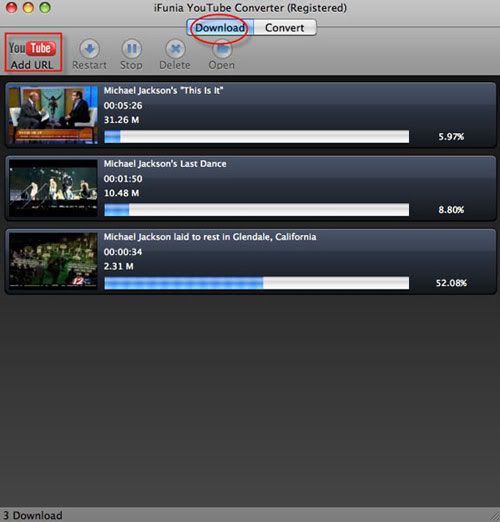
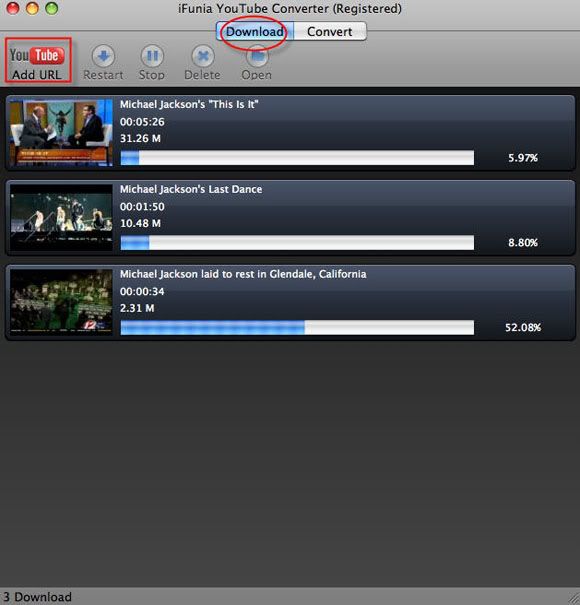
Launch the YouTube Video Converter on your Mac after installation click the button "Add URL" to copy the URL of the YouTube video, you may add as many YouTube video URLs as you want for downloading to your computer.


Step 3: Convert YouTube Video to iDevice supported format

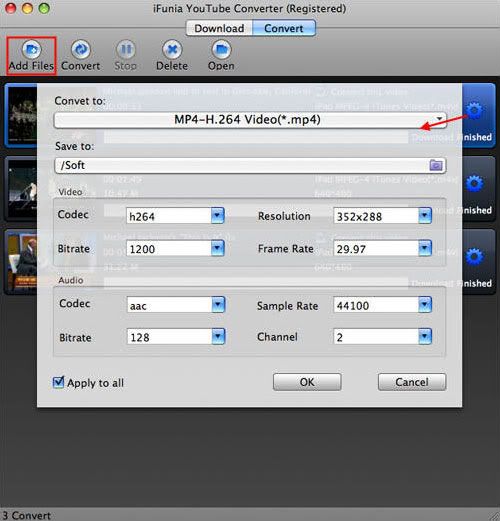
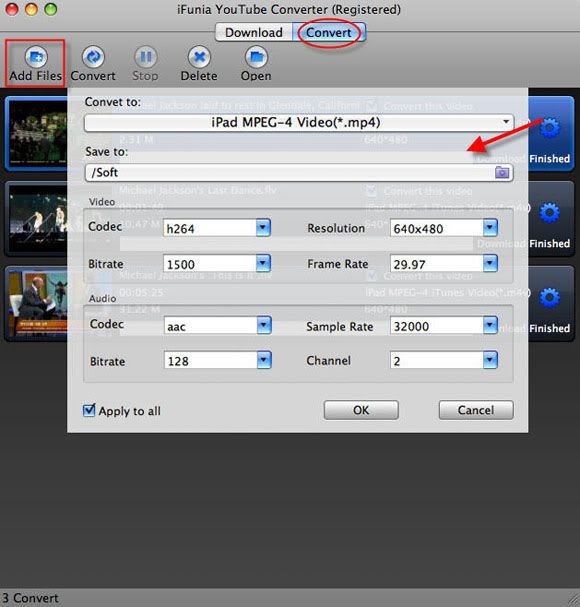
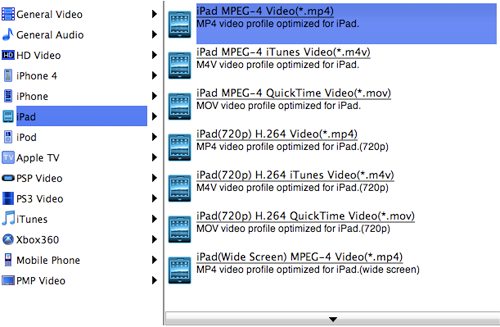
In order to import YouTube video into iDevice, you need to convert YouTube video to iDevice compatible format. Click the "Gear" button at the right side and change the output format you like from the "Convert to" drop-down menu list. Select the best video format for each video file and specify a directory to save the YouTube video files. After all settings has done hit the "Convert" button to start YouTube video to the video you wanted conversion.


Free download iFunia Free YouTube Downloader for Mac


Tips and Tutorials:

* How to Free Download YouTube HD Video on Mac

* How to Put YouTube Videos on PSP

* How to Upload and Edit YouTube videos

* How to Download and Converter YouTube 4K Videos

* How to Convert YouTube Videos to iMovie

* Use the Best YouTube Video Converter for Mac

* Prepare Your AVCHD Video for YouTube?

* Download and Embed YouTube video to Keynote on Mac

* The Best YouTube Video Format for Uploading


Read more...

11/17/2010

How to embed YouTube video to Keynote on Mac OS X

Recently I am doing a project, and to make my Keynote presentation more vivid I think it will be good if I can embed YouTube video to Keynote on Mac. But when I embed YouTube videos to Keynote I had to quit from Keynote and use the web browser to play the relevant YouTube videos. This interrupted the flow of the keynote presentations and it was a total distraction to me as the wifi hotspot I'm using couldn't actually stream fast enough for the YouTube videos to play at all.


What is Keynote?

Keynote is a presentation software application for Mac OS developed as a part of the iWork productivity suite by Apple Inc. Keynote 5.0.3 was announced on September 28, 2009 and is the most recent version. It adds new themes, transitions and animations, and the ability to control the slideshow with an iPhone or iPod touch through the Keynote Remote application which is available for purchase on the iTunes Store. Keynote supports all QuickTime video formats (including MPEG-2 and DV) in slideshows.


How to embed YouTube video to Keynote on Mac?


To be able to embed YouTube video to Keynote we need to use a third party software to convert the YouTube videos to the format that we need for the Keynote presentation. In this simple tutorial I am going to outline how to insert YouTube video to Keynote presentation with iFunia YouTube Converter for Mac.


Step 1. Download YouTube videos for YouTube video to Keynote on Mac
The first step is to download YouTube videos on your Mac, iFunia Free YouTube Downloader for Mac enables you to batch download YouTube(including HD YouTube video) and many other flash videos to your Mac laptop and desktop computer. Of course, you can do it with iFunia YouTube Converter for Mac, installing it on Mac. Click "Add URL" button to add YouTube video URLs in this Mac YouTube Video Converter. Simply copy and paste a YouTube video URL to the Video URL field. And then specify a directory on your computer to save the YouTube video files. Note that you can only add one YouTube video URL at one time. But you're able to add multiple videos for download by repeating this step.


Step 2. Convert YouTube video to Keynote supported format
As we have mentioned above that Keynote accepts all QuickTime formats, so select QuickTime (.MOV) as your output format for your YouTube video to keynote presentation. Simply select the YouTube videos you want to convert and Click "Convert" to start YouTube videos to Keynote conversion on Mac.


Step 3. Embed YouTube video to Keynote on Mac
You can now drag this video file directly into Keynote. Like any other media asset you can use Keynote's inspector panel to add a border, shadow and even a reflection. You can trim the YouTube videos as you like for the YouTube video to Keynote presentation.


Advanced video control for YouTube video to Keynote on Mac>
Keynote offers some really nice and advanced video control features from within the Inspector. Click on the QuickTime logo on the top right of the Inspector panel. You can change the poster image (i.e. the image that appears before the video plays) and you can also adjust the start and stop markers.


Now you can save your Keynote, you can show your Keynote presentation with YouTube videos everywhere with or without an internet connection.


Related Articles:
How to use the best YouTube Video Converter for Mac?
How to download and convert YouTube 4K video?
How to upload and edit YouTube videos?
Convert YouTube FLV to iPhone 4 on Mac?


Read more...

9/12/2010

How to upload and edit YouTube videos


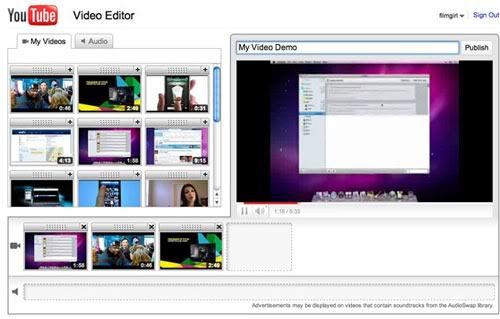
Video editing usually requires installing software packages and having a fair amount of technical savvy. But now YouTube have introduced its new YouTube Video Editor which allows you to create video mashups and edit down clips from your library of existing YouTube video uploads. Here we will walk you through how to upload and edit the YouTube videos with the YouTube Video Editor.


Convert videos to the best video format for YouTube uploading
To use this YouTube Video Editor all you need is your YouTube account and a few of your own YouTube video uploads, as the YouTube Video Editor does not let you edit other user's material. So you need to upload the videos to YouTube website first. If you do not think your video file is supported by YouTube, you may get the best YouTube video uploading results from converting videos to the best YouTube video file format with iFunia Video Converter Pro for Mac.


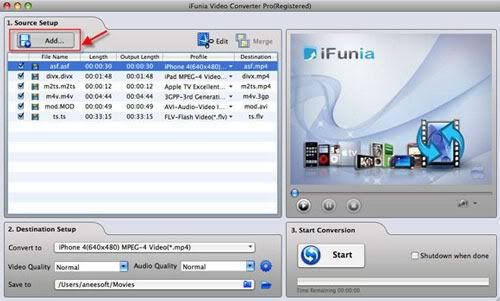
First you need to download and install iFunia Video Converter Pro for Mac, after that click on the "Add" button to add the videos which you want to upload to YouTube. You may add as many videos as you want for batch conversion. This program also has a built-in video editing tool. You can crop the video to remove black sides, trim the video and add text or image watermark. To start the video conversion step, just select the format you want and hit "Start" to begin the YouTube video conversion on Mac.

Now you have convert the videos to the YouTube supported video format, you can start uploading videos to YouTube, first login your YouTube account and press the "Browse" button to locate the YouTube video file on your computer and then press the "Upload Video" button, the amount of time required to upload a video depends upon your internet connection speed and the size of the video you're uploading. It can take anywhere from a few minutes to several hours.


Edit YouTube videos with YouTube Video Editor
To get to the YouTube Video Editor, you can either head to TestTube (a directory of YouTube's Skunk Works projects) and click the "try it now" option, or visit the direct YouTube.com/editor link. When you sign in to the YouTube Video Editor, you'll see a video tab with the videos you just upload and an audio tab where you can select music tracks for your new masterpiece. To start the YouTube video editing, just click and drag your videos down to the editing panel (where the camera icon is).


To add clips to your video you can drag them from the "my videos" section, down to the time line, or you can hit the plus icon that's in each clip's top right hand corner. In case you're not sure what a clip contains, you can mouse over it and hit the play icon to watch the whole thing without leaving the page.


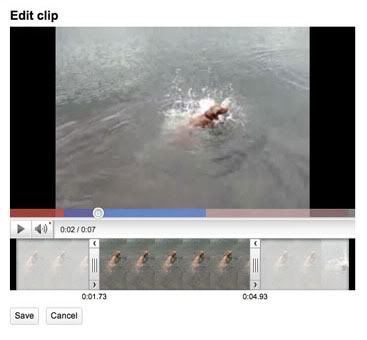
When you hover over the clips you've selected for editing, click on the scissor icon to launch your video in a pop-up window. From there, you can shorten or lengthen your clip by moving the sliders below the main video window. When you're done, just hit save, and the YouTube Video Editor will automatically merge your edited clip with the next video in your sequence.


To view the edit you're in the progress of making, you can just hit the play button and it will start wherever you set your in point. Work the start and end points into the spots where you want them, then hit save to finish the edit for that particular clip.

Add music to YouTube videos with the YouTube Video Editor (optional)
If you want to use a music soundtrack for your YouTube videos instead of the recorded sound you picked up while filming, you can click on the audio tab at the top to reveal YouTube's AudioSwap library. AudioSwap contains "tens of thousands of songs" that you can freely use in your YouTube Video Editor. All you have to do is select a song and either drags it down to the soundtrack editor or just press the plus sign to the right of each title.

You should also note that some AudioSwap tracks are subject to licensing agreements, which means YouTube may include advertisements when certain tracks are used. You also can't edit the AudioSwap track, so the song will only play from the beginning until your video stops.

Once you have finished the YouTube video editing, you just give it a title, and hit publish, YouTube will takes care of the rest. Keep in mind that the new YouTube Video Editor is still a work in progress, so you might get hit with a few bugs as you try it out.

Read more...

9/01/2010

How to download and convert YouTube 4K video

In July 2010, YouTube officially announced that it had launched a range of HD videos in the new YouTube 4K video format, which is a standard resolution for films that measures 4096x3072 pixels. This resolution is too large for watching on your Mac or iPad. So if you'd like to download and store the YouTube 4K videos on Mac or iPad, you need to convert YouTube 4K video to smaller HD video resolution first.


What is the YouTube 4K video format?
The YouTube 4K video format is a next generation standard for rendering very high quality HD video for digital cinema applications. Essentially, this YouTube 4K resolution is twice as powerful as the current 2K HD YouTube video format in digital cinemas today. The advantage of YouTube 4K HD video, aside from the even crisper detail, is that it can offer better fast-action and larger projection surface visibility.

How to download and converter YouTube 4K HD Video?
In order to enjoy 4K-resolution YouTube video on your Mac or iPad more comfortable, you need a YouTube video downloader with convert function. iFunia YouTube Converter for Mac is one that can download YouTube videos and convert them to the appropriate video format for you. The program also features a handy batch mode which allows you to download several YouTube videos at one time, making this process more efficient. Below is the step-by-step guide about how to download and convert YouTube 4K video with iFunia YouTube Converter for Mac.

Step1. Download YouTube 4K HD videos with iFunia YouTube Converter for Mac
Download the iFunia YouTube Video Converter for Mac, and open the tool. After that go to the YouTube website and select the YouTube 4K video you want to watch. Click 360P to drop-down the menu then copy the YouTube 4K video URL. Click Add button in iFunia YouTube Video Converter and paste the YouTube HD video URL. After the YouTube 4K video URLs have been added, click "Download" button and start to download the YouTube 4K videos. The download timing depends on your internet boardband.


Step2. Convert YouTube 4K Video to Mac or iPad supported format
After the YouTube 4K HD videos are downloaded completely in iFunia YouTube Video Converter for Mac, you can now convert the 4K HD videos to the Mac or iPad supported video formats that you want. The program allows you to convert 4K YouTube video to any other formats. For example, MPEG-4 is more friendly for Mac and it is also a iPad supported video format. Click the "Gear" button at the right side and change the output format you like from the "Convert to" drop-down menu list. Select the best video format for each video file and specify a directory to save the YouTube 4K HD video files. Remember that the output file size mostly depends on the Bitrate you set. Larger Bitrate, larger file size. Actually the default profile given is configured with good quality output.


Step3. Start converting YouTube 4K HD video
Now you may click the button "Convert" to begin converting the YouTube 4K HD video. The conversion progress bar will show you how much of the encoding is completed. The converting time will depend on several variables including: the duration of the YouTube 4K video file, the speed of your computer, what other activity your computer is currently doing, the codec you selected and the bitrate you set. Larger Bitrate, larger file size and longer converting time.

Conclusion
This professional YouTube Video Converter for Mac is specially designed for downloading and converting YouTube videos, and now you can also download and convert YouTube 4K HD videos with this handy tool. Get the free trial and starting your YouTube videos downloading now.

Read more...

8/12/2010

Download and convert YouTube videos on MAC


YouTube is pretty much the one stop shop for videos online. In case you are interested in downloading YouTube videos to your Mac computer so that you can play them on iPad or iPhone 4 or some other portable devices.

"I'd like to download some YouTube videos to my phone. I use a Firefix extention to download .flv files, but I can't use them. All the converters I googled were Windows only. I'd also love to convert YouTube flv to MP4 on Mac." Does anyone have the same problem as me? Wanna download and convert YouTube videos to other format? Well, I found a very good tool called iFunia YouTube converter to make it easily! Now, I'd like to share some simple practical tips which I collated on the course. The steps listed below will help you quickly and easily get the favourite YouTube videos and convert to other formats on your Mac OS.

Things You Will Need
* A Mac computer
* iFunia YouTube Converter for MAC
* Network and portable player
* Favourite YouTube videos

Step 1. Download and run iFunia YouTube Converter for Mac
Download the YouTube Converter for MAC from iFunia and install it on MAC. Now run the program on your Mac. It's really easy to use yet powerful. You may use iFunia YouTube Converter to download any favourite videos from YouTube as many as you want.

Step 2. Add video URLs to download videos from YouTube
In the "Download" channel, there is the field for a Video URL, the field for an output path. Simply copy-n-paste a YouTube or Google URL to the Video URL field. The URL looks like: http://www.YouTube.com/watch?v=uTJAsZP2iLk. You can batch download multiple videos by adding multiple YouTube video URLs. And then specify a directory on your computer to save the output FLV files.


Step 3. Open YouTube FLV video files to convert and select output profile
After downloading the YouTube videos, then switch to "Convert" channel, in the program's main window click "Add..." button on the toolbar to add FLV videos that you want to convert to the needed compatible video formats. Select the output profile in "Convert to" from the dropdown menu in the lower part of the window.


Step 4. Convert YouTube *.flv videos
Finally, click the big "Convert" button to start converting YouTube FLV videos. You also can batch convert multiple videos.

YouTube video Technology
YouTube uses Adobe Flash Video technology to display a wide variety of user-generated video content, including movie clips, TV clips, and music videos. Viewing YouTube videos on a personal computer requires the Adobe Flash Player plug-in to be installed in the browser.
In January 2010, YouTube launched an experimental version of the site that uses the built-in multimedia capabilities of web browsers supporting the HTML5 standard. This allows videos to be viewed without requiring Adobe Flash Player or any other plug-in to be installed. The YouTube site has a page that allows supported browsers to opt in to the HTML5 trial. Only browsers that support HTML5 Video using the H.264 or WebM formats can play the videos, and not all videos on the site are available. So one of the best options for enjoying YouTube videos is download and convert them to the needed formats, then playback on iPad, iPhone 4, PSP, or some other portable devices on-the-go.

Tips
* The iFunia YouTube Converter will switch to "Convert" channel after downloading the videos automaticly.
* This YouTube Converter from iFunia enable you to download and convert YouTube videos to a wide arrange of video formats including MP4, M4A, MOV, MP3, etc, enable them to be played on iPad, iPhone(iPhone 4), iPod, Apple TV or Quick Time Player.
* Doubles as a YouTube HD video downloader and converter. It helps you download and convert YouTube HD video to HD MP4, HD MOV, HD AVI and more.
* Allows you extract soundtracks from online videos.
* Save time by downloading or converting multiple videos at the same time.

Read more...