Pages

10/12/2010

How to convert video to iPad MP4, play video on iPad for Mac

Apple's iPad is a tablet for work and play, running an OS similar to the current iPhone operation system and powered by a customer-designed Apple 1-GHz processor. iPad's big, beautiful, Multi-Touch LED screen gives iPad users unparalleled experience in surfing on web, watching videos, reading eBooks or playing cool games.


Do you feel uncomfortable while sharing video to friends on iPad because of incompatible format? Don't worry; iFunia iPad Video Converter for Mac can solve your problem, which can be used to convert prefect video formats for Mac OS X such as AVCHD M2TS/MTS, MOD, TOD, MPEG, AVI, MKV, FLV, MOV, WMV to iPad supported formats including MP4, M4V, MOV, MP3, AAC, etc. The guide below will teach you on how to use iFunia iPad Video Converter for Mac to convert video to ipad.

Step 1: Add the video files
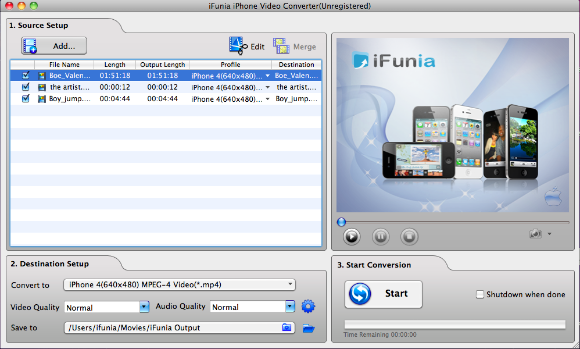
Download iFunia iPad Video Converter, install and run it, then click the "Add" button to add videos on your hard drive to iPad Video Converter. This iPad video converter for Mac supports batch conversion, so you can import and convert several multimedia files at a time.


Step 2: Output Settings
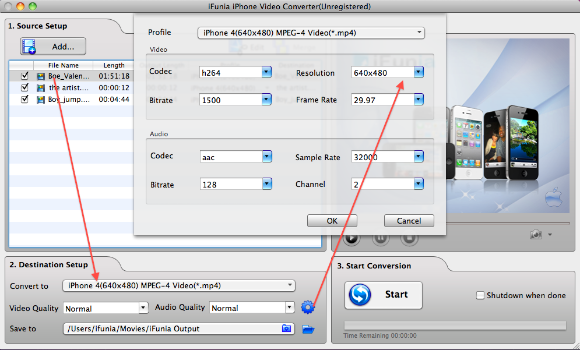
Use the "Convert to" on the bottom of the window to control the output format. Select iPad MPEG4 (MP4) output format for each video file. Choose "save to" and then select a folder for the output files. (Advanced users can click the round button next "Audia Quality" to customize output video audio parameters).


Step 3: Start Conversion
At last, just click the "Start" button; wait a minute and you can get the video with proper format. In addition, iFunia iPad Video Converter for Mac support auto shut down function, you can choose this option and your computer will shut down while the task is completed.

Note: If you are using Windows, please go to iFunia iPad Video Converter for Windows.

Read more...

10/11/2010

Downrez 1080P HD Videos...Or You Can't Watch Them

You may have 1080P videos on your computer, but the iPad can't play them—in fact, iTunes won’t even let you copy them to the iPad! The easiest solution? Downrez them to 720P using an app like Handbrake or iFunia.
manafon gives you a full tutorial on that here. You can also stream music and videos to the iPad with ipad video converter.

Read more...

10/09/2010

Free iPhone Apps for Halloween and Free photo editing software

For many people, the iPhone camera — always in your pocket — is fast replacing digital cameras. And with the help of a bunch of applications, the pictures can look even better than typical photos.

Picasa, Photobucket, Zooomr, Webshots are free photo editing software that make your pictures look great, sharing your best photos with friends and family is as easy as pressing a button! Other apps offer something similar, by transforming photographs, offering a way to share them or both. They include Hipstamatic, DailyBooth and Picplz, which we have written about.


6 Free iPhone Apps to get you into the Halloween mood, free download today!

Halloween PhotoCraft

Halloween PhotoCraft allows you to add fun Halloween themed graphics to your photos!
Halloween PhotoCraft's fast and intuitive interface makes it easy for everyone to use and share their captioned photos in seconds. It's like having a mini Photoshop right on your iPhone!
Get this free iPhone app on iTunes

Singing Pumpkins

Singing Pumpkins is a simple little holiday app for Halloween. Tap on the pumpkins to hear them sing - they aren't the most talented vocalists around but they are pretty cute and just spooky enough to help get you in the Halloween mood. So tap away and see if you can lead them in song. Be warned though, sometimes they don't behave so well and might say things that surprise you.
Get this free iPhone app on iTunes

Trick Or Treat

Trick Or Treat is a fun-filled, fast paced and challenging interactive trade off game that allows a single player to swap Halloween pieces in order to make a three in a row set. While getting three in a row causes the player to remove the set and earning points, getting more than three also removes the group and earns the player more points.
Get this free iPhone app on iTunes

Halloween WordSearch

Here's a good way to while away time on Halloween's night. Play a nice little word game with your friends or family on a Halloween theme and backdraft, complete with Halloween background music to set the mood. The words in the game are Halloween-related too.
Get this free iPhone app on iTunes

Ghost Pop by Jirbo

As featured on the front page of the iTunes App Store Games page, here comes Ghost Pop! Pop the Ghosts before time runs out and they get you! Play will all different sized ghosts by changing the settings. Compare your highscores with the rest of the world this holiday season on Jirbo.com!
Get this free iPhone app on iTunes

Scary Sounds

Everyday can be a scary day if you want to. All you need is this Scary Sounds app. Can't wait till Halloween for the next scary sound board? This app is perfect for you. Each of the sound can be play once or loop forever. Select the right sequence of loop sounds will create you the perfect horror sound environment.
Get this free iPhone app on iTunes

Qiuck Links:
iPhone 4 supported video and audio formats
Rip, Convert and Put DVD to iPhone 4 on Mac
Free Christmas iPad Apps and free Christmas songs for your iPod

Source:
Post by manafon in ifunia.weebly.com

Read more...

10/08/2010

How to use the best YouTube Video Converter for Mac

What is YouTube
YouTube is a video sharing website on which users can upload and share videos. The company is based in San Bruno, California, and uses Adobe Flash Video technology to display a wide variety of user-generated video content, including movie clips, TV clips, and music videos, as well as amateur content such as video blogging and short original videos. Most of the content on YouTube has been uploaded by individuals, although media corporations including CBS, the BBC, UMG and other organizations offer some of their material via the site, as part of the YouTube partnership program.


When you need to convert YouTube videos on Mac, iFunia YouTube Converter for Mac is an excellent choice. It is an easy-to-use yet powerful tool that allows you to download YouTube videos and convert YouTube videos to popular video&audio formats. So download the best YouTube Video Converter for Mac now and you are ready to start converting it.

iFunia YouTube Converter for Mac is the ideal Mac YouTube downloader and Mac YouTube converter(.flv converter)-enabling you to download and convert YouTube videos to a wide arrange of video formats including MP4, M4A, MOV, MP3, etc, enabling them to be played on iPad, iPhone, iPod, Apple TV or Quick Time Player. iFunia YouTube Converter for Mac also doubles as a YouTube HD video downloader and converter. It helps you download and convert YouTube HD video to HD MP4, HD MOV, HD AVI and more.

Step 1. Download YouTube videos with the best YouTube Video Converter
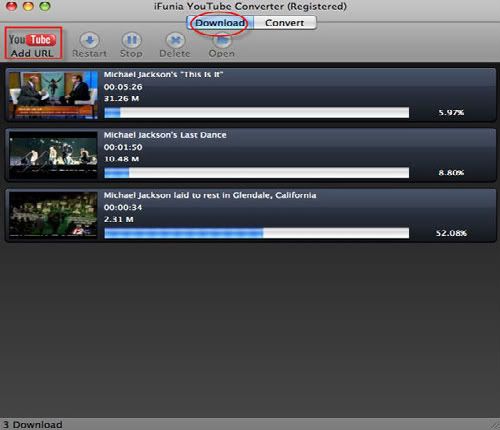
Run the YouTube tool. After that Click Add button in iFunia YouTube Video Converter and simply copy and paste a YouTube video URL to the Video URL field. And then specify a directory on your computer to save the YouTube video files, click "Download" button and start to download the YouTube video files.


Step 2. Convert YouTube videos to other video formats in the best YouTube Video Converter
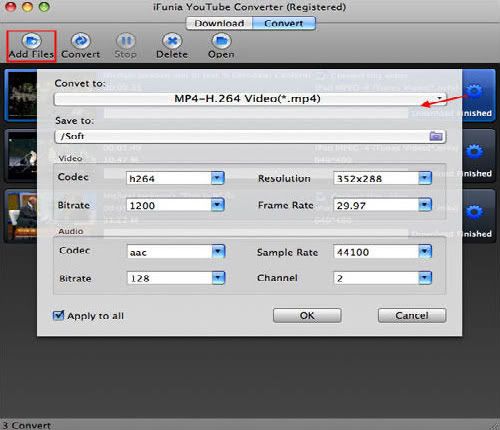
After the download is completed in YouTube Video Converter for Mac, you can now convert them to the video file formats that you want. Click the "Gear" button at the right side and change the output format you like from the "Convert to" drop-down menu list. Select the best video format for each video file and specify a directory to save the YouTube video files. Remember that the output file size mostly depends on the Bitrate you set. Larger Bitrate, larger file size. Actually the default profile given is configured with good quality output.


Step 3. Start converting YouTube videos in the best YouTube Video Converter
Now you may click the button "Convert" to begin converting the YouTube videos. The conversion progress bar will show you how much of the encoding is completed. The converting time will depend on several variables including: the duration of the video file, the speed of your computer, what other activity your computer is currently doing, the codec you selected and the bitrate you set.

Tips:
Unregistered users of Youtube can watch the videos, while registered users are permitted to upload an unlimited number of videos. Videos that are considered to contain potentially offensive content are available only to registered users over the age of 18. The uploading of videos containing defamation, pornography, copyright violations, and material encouraging criminal conduct is prohibited by YouTube's terms of service. Accounts of registered users are called "channels".

You can only add one YouTube video URL at one time. But you're able to add multiple videos for download by repeating this step.

Read more...

9/29/2010

How to get, convert DVD movies for iPad playback on Mac

The iPad is the first tablet computer developed by Apple Inc. It is part of a device category between a smartphone and a laptop computer. The iPad, with 9.7-inch LED-backlit glossy widescreen display, 1024-by-768-piexl resolution, the HD feature makes watching DVD movies an utterly new experience. The following tutorial is going to show you how to convert DVDs to iPad with iFunia DVD to iPad Converter for Mac.


iFunia DVD to iPad Converter is the best and most powerful DVD to iPad converter, which allows you to rip and convert your loved Hollywood DVD movies to iPad-ready MP4, M4V and MOV video formats and M4A, MP3, AIFF, WAV audio formats. iFunia DVD to iPad Converter Mac also allows you to trim DVD movie, crop DVD and select DVD subtitle and audio track to convert your movie with any available languages.

Preparation: Download the free trial version, install and run iFunia DVD to iPad Converter.
Step 1 Load movies to the DVD to iPad Converter for Mac
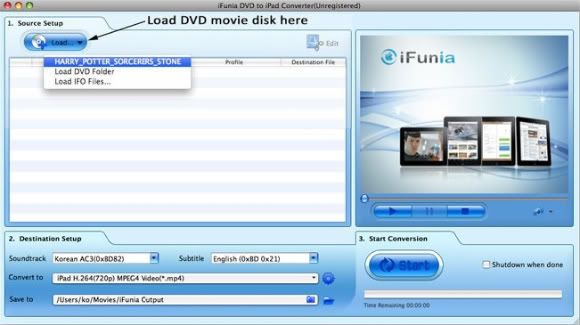
Now get your DVD disc and insert it. Then run iFunia DVD to iPad Converter on your Mac and click the big button "Load..." to load your DVD disk, you may see the name of DVD Movie disk if you insert DVD disk before running this DVD ripper tool (see the image below to have an idea). This may take up to a minute or two depending on the contents of the DVD and the speed of your optical drive.


Step 2 Select iPad MPEG-4 Video (*.mp4) as output format
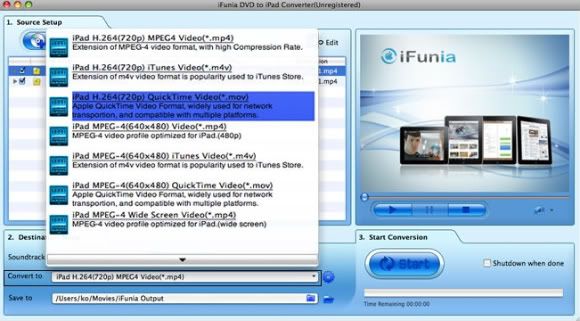
In the Destination-Setup section of the interface, choose the right preset for your iPad device in the Convert-to drop-down menu. Here I set the output video format to 'iPad MPEG-4 Video (*.mp4)'.


Step 3 Hit Start to rip DVD to iPad for Mac
Click "Start" button to start converting DVD to iPad. When the conversion is done, you can transfer converted DVDs to iPad, and enjoy it comfortably on a cozy sofa!

Tips:
This professional iFunia DVD to iPad Converter for Mac is specially design for Apple iPad, aiming to enable iPad users an exquisite experience of viewing DVD movies on your iPad's widescreen. If you are using Windows, please go to iFunia DVD to iPad Converter for Windows.

Read more...

Convert MKV, FLV, HD, WMV…Videos for iPad using iFunia iPad Video Converter

iPad, declared by Apple Inc. as a magical and revolutionary product, is announced on January 27, 2010 and released on April 3, 2010. The tablet computer is quickly popular among people who go after the latest fashion. Therefore, iFunia iPad Video Converter for Windows is created to solve the problem that the videos can't be played by iPad.

The best iFunia iPad Converter software can convert all common video format to iPad, from: HD Video (inc. MPEG-2 HD and WMV HD), MOD, M2TS, AVI (DivX,Xvid, etc.), MP4 (inc. Sony PSP and Apple iPod), WMV, 3GP, QuickTime (MOV), VOB, MPEG-1, 2, 4,H.263, H.264, Real Video, MKV, FLV and more.

With the iFunia Video Converter for iPad, it can be so easily realized to crop video to remove black video sides. You can also trim your video files or merge all added videos and output one file. Users could personalize videos, try to add picture or text watermark with customized transparency, size and position in your video. Also it supports Windows 7. Below is the step-by-step guide about how to convert different video into iPad-ready formats on Windows.

Step 1 Add video to iFunia iPad Video Converter
Download iFunia iPad Video Converter for Windows and run the program, click Add…button to select and open the video file you wish to convert. iFunia iPad Video Converter supports most of the popular video formats, so you can easily convert FLV to iPad, MKV to iPad, and even HD video formats like AVCHD M2TS MTS to iPad format.


Step 2 Select iPad preset from output format list
In the Destination-Setup section of the interface, choose the right preset for your iPad device in the Profile drop-down menu. There are many options when you're converting your videos for your iPad, obviously, the better the quality, the larger the file size. Ultimately it's a personal decision everyone has to make on what's more important: space on your iPad or audio/video quality.


Step 3 Hit Start to iPad video conversion on Windows
Now you may click the big button "Start" to begin the conversion. The convert progress bar shows you how much of the encoding is completed. The encoding time will depend on several variables including: the duration of the video file, the speed of your computer, what other activity your computer is currently doing and the bitrates you set.

Tips:
This professional iPad Video Converter for Windows is specially design for Apple iPad, aiming to enable iPad users an exquisite experience of viewing video entertainment on your iPad’s large screen. If you find yourself saving and converting video on a regular basis, then spend a few bucks and get the software. Also if you are using Mac OS, please go to iFunia iPad Video Converter for Mac.

iPad Supported H.264 video up to 720p, 30 frames per second, main Profile level 3.1 with AAC-LC audio up to 160 Kbps per channel, 48kHz, stereo audio in .m4v, .mp4, and .mov file formats; MPEG-4 video, up to 2.5 Mbps, 640 by 480 pixels, 30 frames per second, simple profile with AAC-LC audio up to 160 Kbps, 48kHz, stereo audio in .m4v, .mp4, and .mov file formats; Motion JPEG (M-JPEG) up to 35 Mbps, 1280 by 720 pixels, 30 frames per second, audio in ulaw, PCM stereo audio in .avi file format.

Read more...

9/27/2010

How to convert MKV to iPhone 4 for Mac

MKV, short for Matroska Video, unlike MP3, MP4 and things like those, is not a media format but an extensible open standard Audio/Video container. We can definite it as a multimedia container.
As we know, the new iPhone 4 does not support MKV format. So if you want to play your MKV files on iPhone 4, you should convert MKV to iPhone 4 supported format first. Then how to convert MKV to iPhone 4? Is there any easy-to-use MKV to iPhone 4 Converter?

Here is the solution: iFunia iPhone 4 Video Converter for Mac is a specialty to dedicatedly convert MKV to iPhone 4 videos. This guide is going to help you easily convert between several video formats like your favorite MKV file to MP4 for your iPhone 4.

What You Will Need
*A Mac computer
*iFunia iPhone 4 Video Converter for Mac, download a trial to give it a try
*The MKV file(s) you wish to convert
*iTunes to sync your iPhone 4


Getting Started
Step 1 Add MKV video files to Mac iPhone 4 Video Converter
After you launch the iFunia iPhone 4 Video Converter, click the "Add..." button and select the MKV file you wish to convert. This iPhone 4 video converter for Mac supports drag-drop and batch conversion, so you can import and convert several MKV files at a time.


Step 2 Select output profile and change iPhone video and audio settings
iFunia iPhone 4 Video Converter for Mac has several video profiles to choose for iPhone output format. Select an MP4 profile from the list, in this case, select "iPhone 4 MPEG-4(640*480) Video (*.mp4)". Using this profile will yield a good quality video for your iPhone 4. You can also change the Resolution, Encoder, Bit rate and Frame rate to get the best quality of MKV video on iPhone. The size of the iPhone file depends a lot on these settings.


If you would like you may select the output folder, by default iFunia iPhone 4 Video Converter for Mac will save the file in the default folder as the original file.

Step 3 Start MKV to iPhone 4 Conversion
After all the settings, just click 'Start' to convert MKV to iPhone 4 on Mac OS. After a few minutes waiting, you can play the converted MKV files on your iPhone 4.

Step 4 Sync video to iPhone 4 via iTunes
Finally you want to use iTunes to add the output file to your library. Usually when you select "Add File to Library..." the file will be placed in your Movies section once you've done that you're all set and ready to sync with your iPhone 4. If you've never synced your iPhone before checkout Apple's detailed activation and syncing the iPhone video, the syncing segment is about half way into the video.

Tips:
iFunia iPhone 4 Video Converter for Mac isn't only for the converting MKV to iPhone 4, it can also convert the following formats to iPhone 4 compatible formats: AVI, MPG(MPEG), WMV, MP4, MOV, VOB, ASF, RM, RMVB, 3GP, 3G2, FLV, MKV, MOD, TOD, TS, DV, H.261, H.264, M4V, DAT, AVCHD Video (*.mts, *.m2ts), H.264/MPEG4 AVC Video(*.m2ts;*.mts), Quick Time HD Video (*.mov), WMV HD Video (*.xwmv), Audio-Video Interleaved HD Video (*.avi), MPEG2 HD Video (*.mpg; *.mpeg), MPEG4 HD Video(*.mp4), MPEG-2 TS HD Video (*.ts), HD FLV Video(*.flv), NUT, YUV, NSV, MPV, MJPG, MJPEG, DIF, DVR-MS, QT, etc.

If you are Windows users, try iFunia iPhone 4 Video Converter for Windows.

Read more...